Quick Start
This guide provides step-by-step instructions to get your first sample application deployed on Clue2App.
Prerequisites
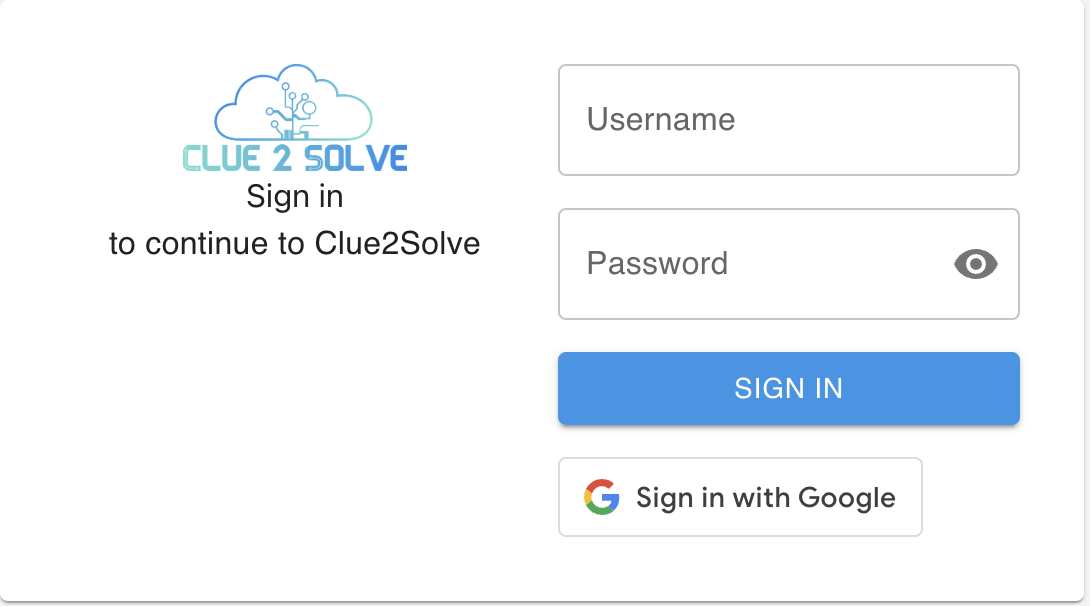
1. Login Credentials:
- Ensure you have your username and password or use Google SSO for login.
Steps to Deploy Your Application
1. Login:
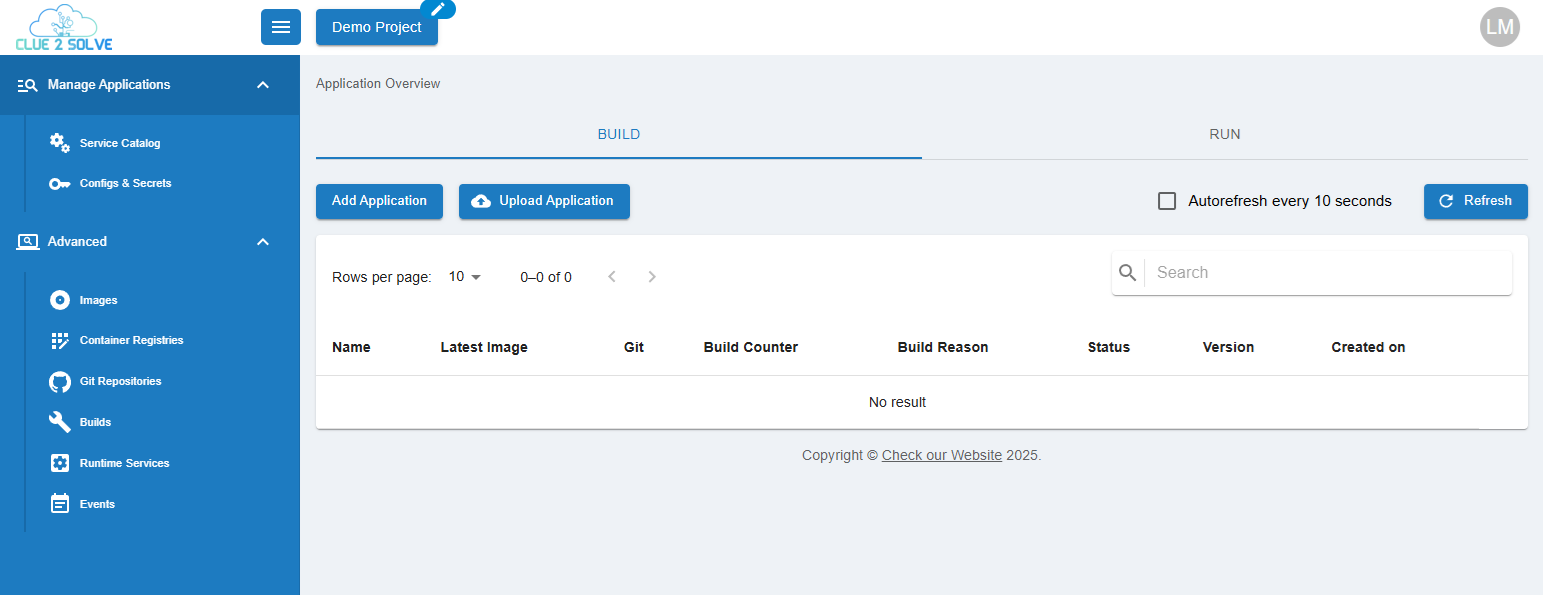
- Once logged in, you will get redirected to the Manage Applications page.
2. Create a New Application:
- Make sure you are in the Manage Applications section.
- Click on Add Application to create a new application.
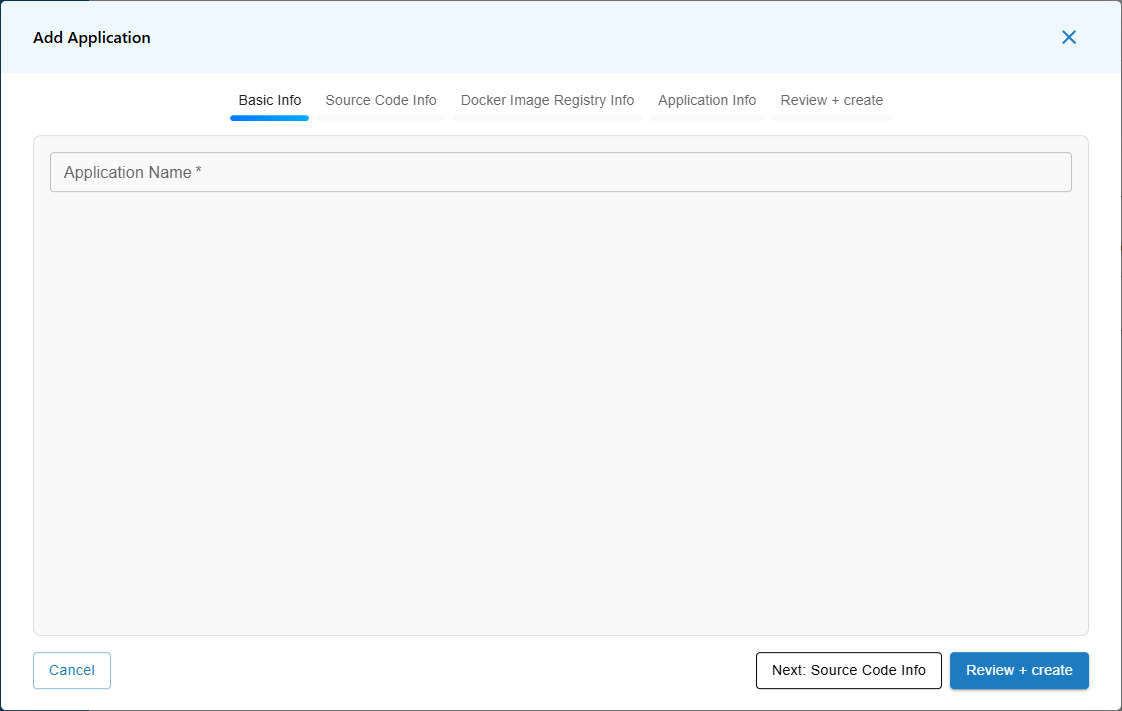
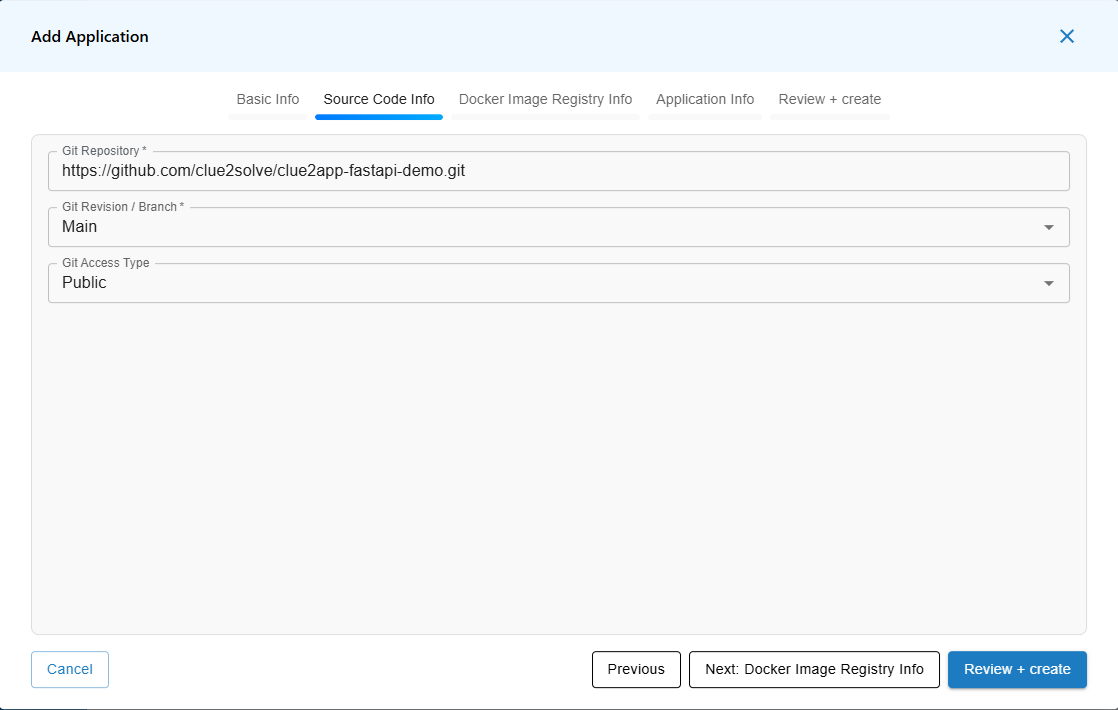
3. Source Code Information:
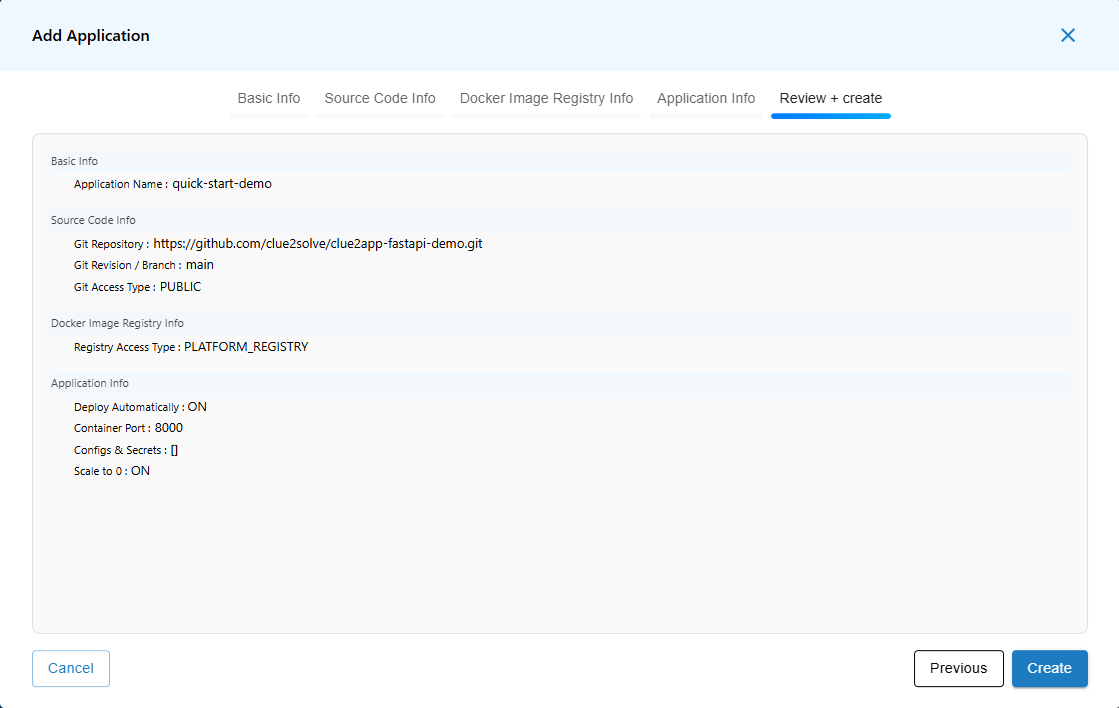
- Build Name: Enter
quick-start-demo. - Git Repository: Provide the Git repository URL:
https://github.com/clue2solve/clue2app-fastapi-demo.git
- Git Revision/Branch: Set to
main. - Git Access Type: Select Public.
4. Docker Image Registry Information:
- Choose Platform Hosted Registry.
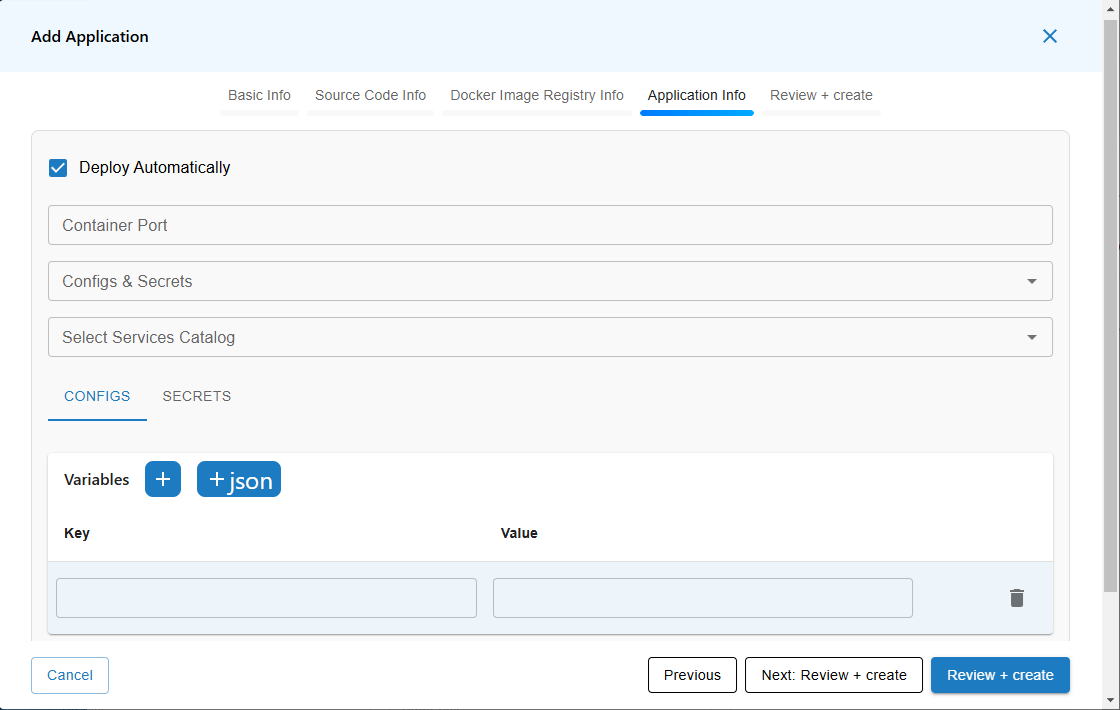
5. Application Information:
- Ensure Deploy Automatically is checked.
- Container Port: Enter
8000. - Other fields can be skipped for now.
6. Review and Save:
- Review Application and make sure everything is correct.
6. Save Project Information:
- After completing all fields, save the project.
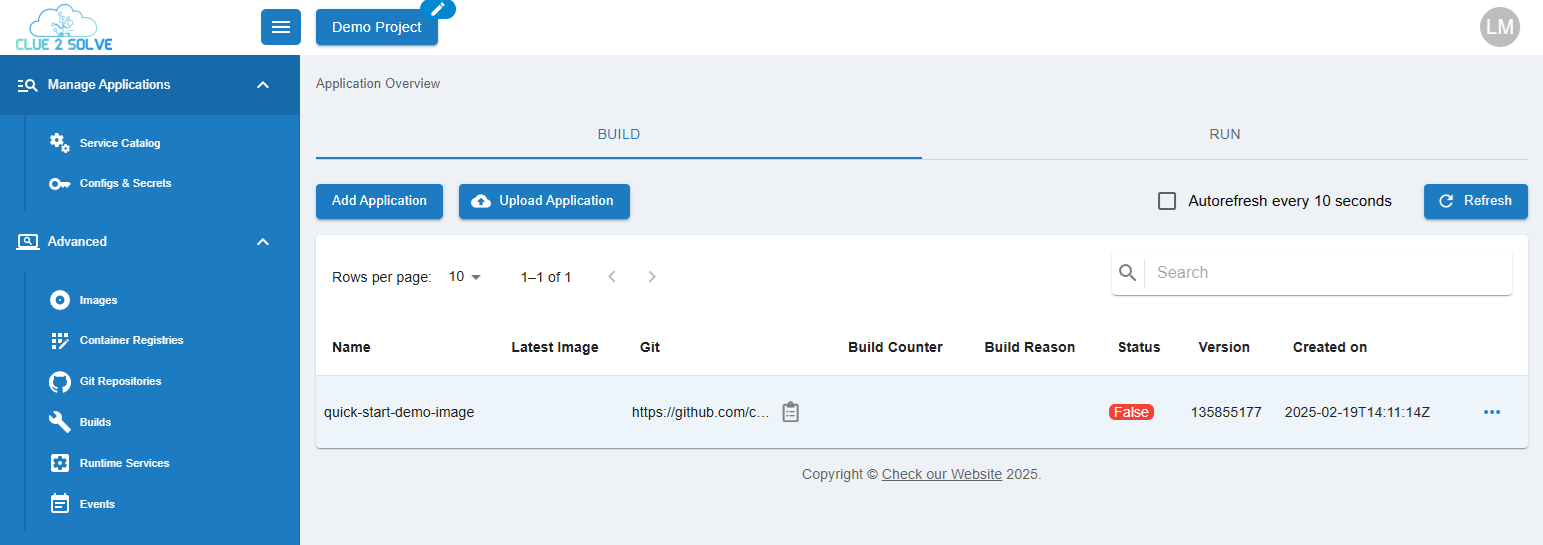 (This appears immediately after saving.)
- After a minute, you will see:
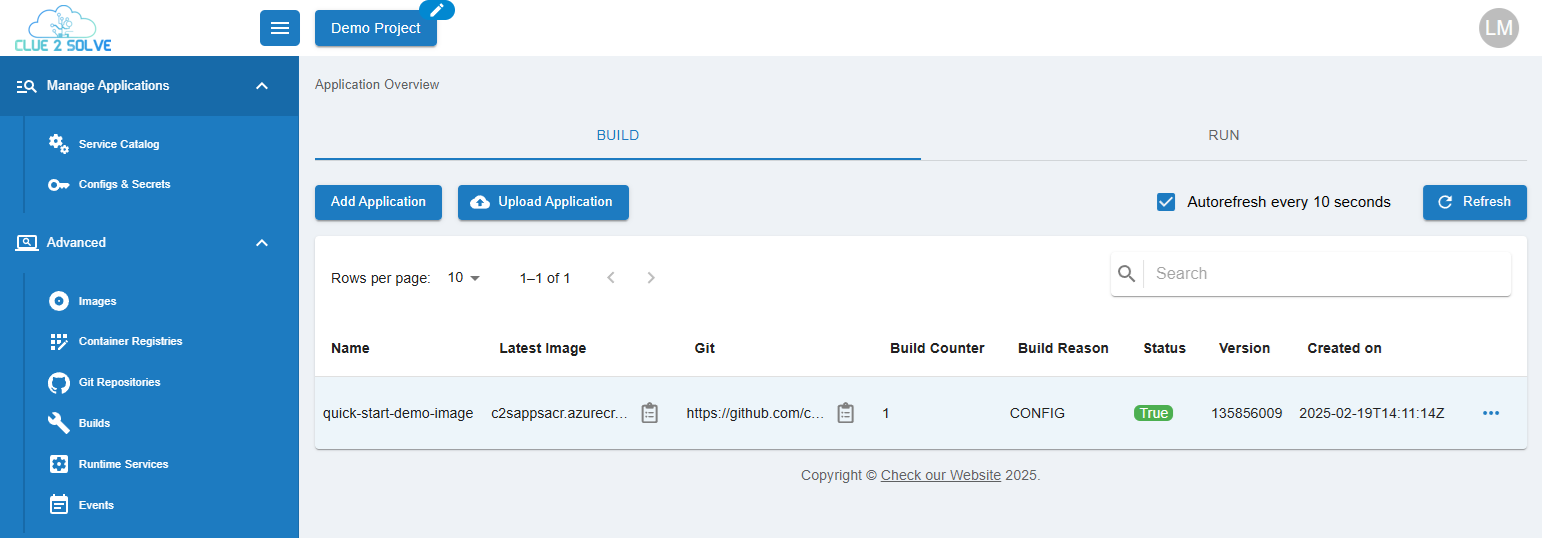 (This appears after a minute.)
7. Run Your Project:
- Click on the RUN section to view your project. A URL will be generated for your project, allowing you to access it.
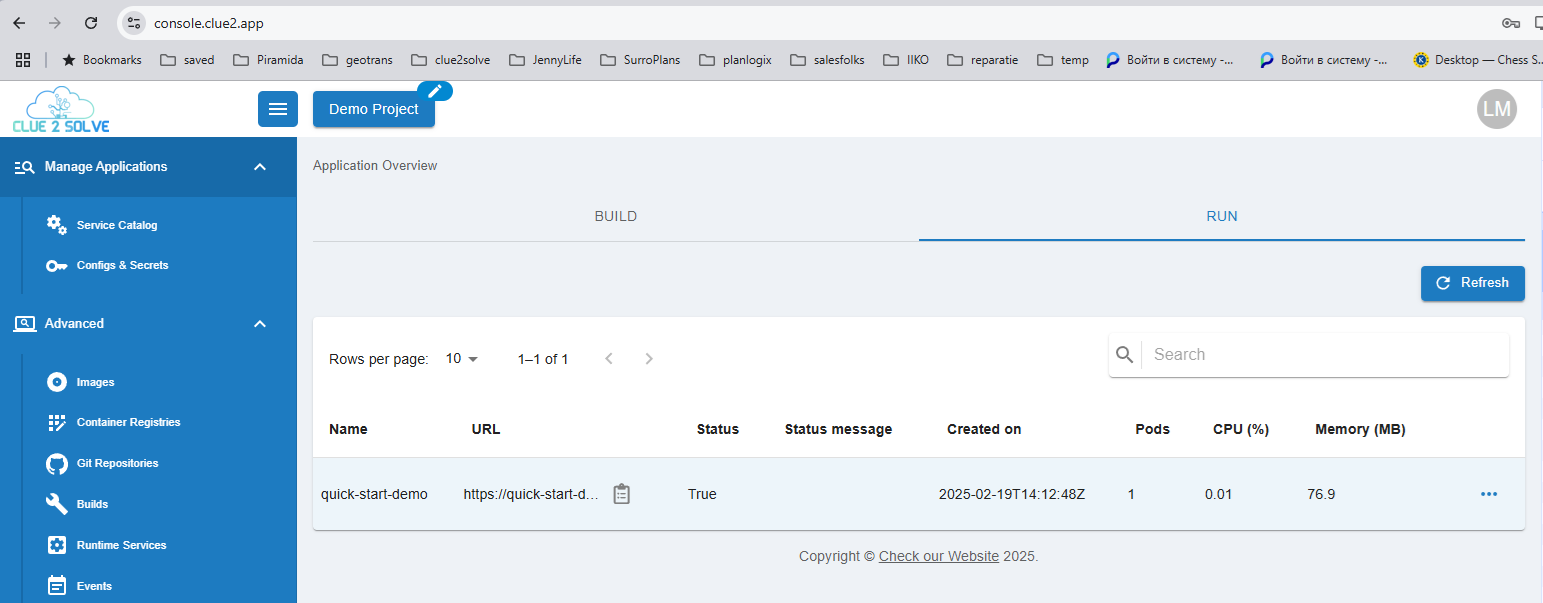
- Now you can press on URL field and your application will open in a new tab.